
Aevo in five minutes
This page explains what you see after opening Aevo. It reads best with the board open next to it.
The first start
A new account begins with a short dialog:
- Welcome to Aevo: name and profile picture, both optional.
- Connect a calendar: Google Calendar, Microsoft 365 or CalDAV. "Connect later" skips the step.
- How do you want to start?: "Five example tasks", "Import tasks" or "Empty board".
Take the five example tasks for this page. Each shows one case: an overdue deadline, a plan for today, a task postponed three times, a paused one and one with a fixed start. Above the board a note "Example board" offers "Keep" and "Delete".
A new account also has every Pro feature for 14 days, without payment details. After that it carries on as Free. What that means is on Free and Pro.
The board
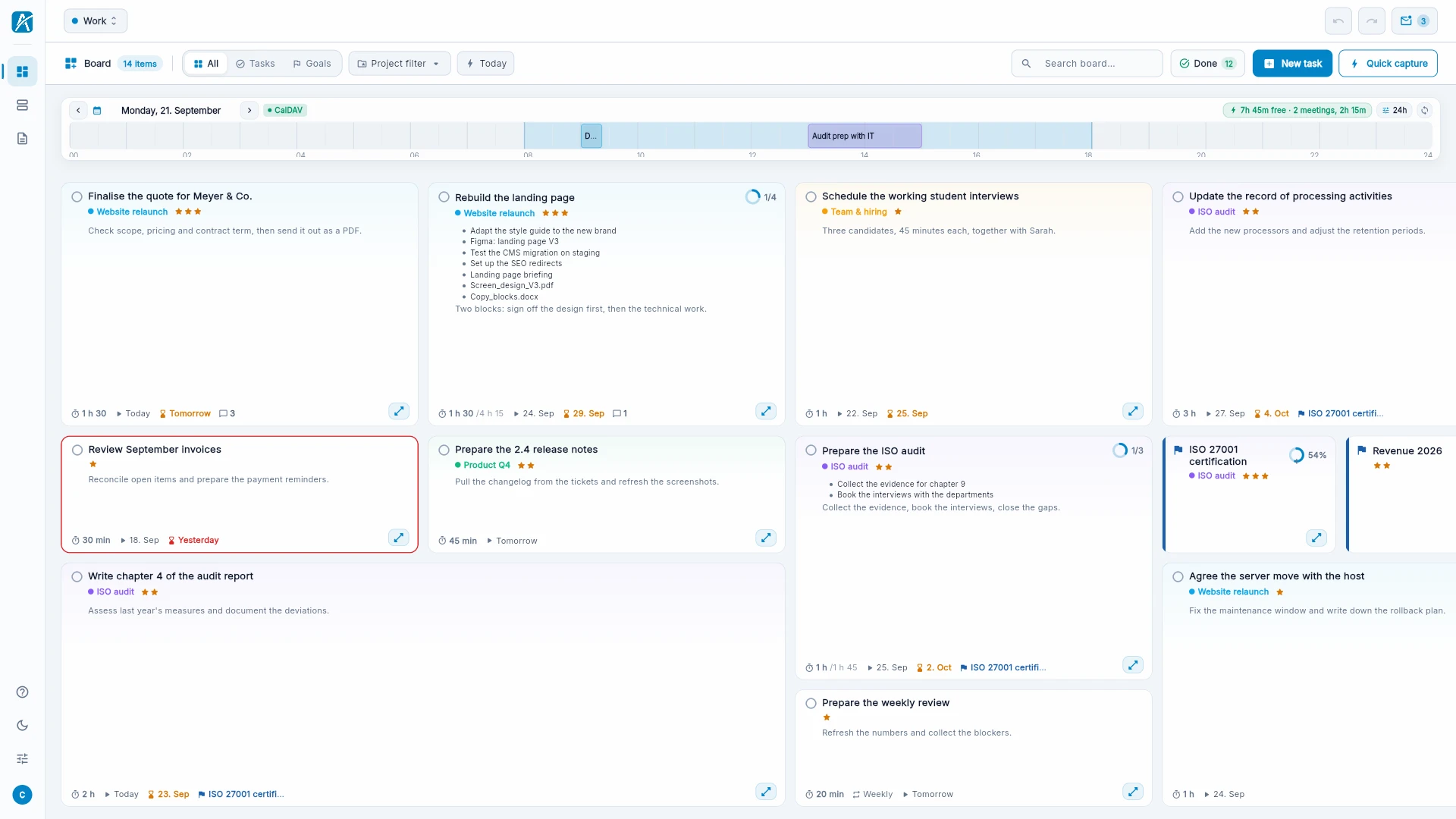
- On the left the rail with the sections: Board, List, Day plan, Notes, Insights. Below them help, light or dark mode and settings.
- Top left the workspace. On the far right undo, redo and the inbox.
- Below that the filters (All, Tasks, Goals), the project filter, "Today", search, "Completed" and the create button. The arrow on it chooses whether it opens quick capture or the "New task" form.
- The timeline shows the day with your events.
- The tiles are your tasks. What matters sits at the top left.
Reading a tile
From top to bottom a tile shows:
- the circle for ticking it off, and the title,
- the project as a colored dot, and the stars,
- the description, or the next steps if the task has subtasks,
- at the bottom the effort, the "Work on" date and the deadline.
The size of the tile follows the effort: under 20 minutes small, up to 45 minutes medium, up to 90 minutes large, above that extra large. A task without effort is small. "Compact" above the board makes all tiles smaller when you want to see more at once.
Three frames mean something:
- Red: the deadline is today or has passed.
- Yellow: postponed three times or more, or the planned day is more than a week ago.
- Green outline around several tiles: this still fits into your free time today.
A tile marked PAUSED is waiting and therefore sits at the very bottom.
Why is this at the top?
Every task has a score. You never have to work it out, but you can always look:
- Click a tile. The sidebar opens on the right.
- Click the score at the top.
- The card "Why this is here" names the reasons, for example "Deadline passed 1 days ago" or "Postponed 3x".
More: How Aevo ranks.
Try it
- Open the task at the very top left and read the card "Why this is here".
- Open a task further down and compare the reasons.
- Give the lower task three stars in the sidebar. It moves up.
- Take the change back with undo (Ctrl+Z, on a Mac Cmd+Z).
Next: Your first task