
Connect your inbox
Part of Pro.
With a connected mailbox you read emails in Aevo and turn an email into a task with one click. Aevo only reads. It sends no email.
Both ways start under Settings › Email accounts.
Microsoft 365
- Click Microsoft 365.
- Sign in and consent.
If you connected Microsoft 365 earlier for the calendar, the connection may cover the calendar only. Aevo then shows "Reconnect". Reconnecting once is enough.
IMAP
For Gmail, iCloud and any other mailbox.
- Click Add account and choose Email account.
- Enter account name, email address, IMAP server, port, username and password.
- Click Save and sync.
| Provider | Server | Port | Password |
|---|---|---|---|
| Gmail | imap.gmail.com |
993, SSL | app password from myaccount.google.com/apppasswords |
| iCloud | imap.mail.me.com |
993, SSL | app password from appleid.apple.com |
| Microsoft 365 over IMAP | outlook.office365.com |
993, SSL | account password or app password |
Accounts with two-factor sign-in need an app password instead of your normal password. Credentials are stored encrypted.
Use the inbox
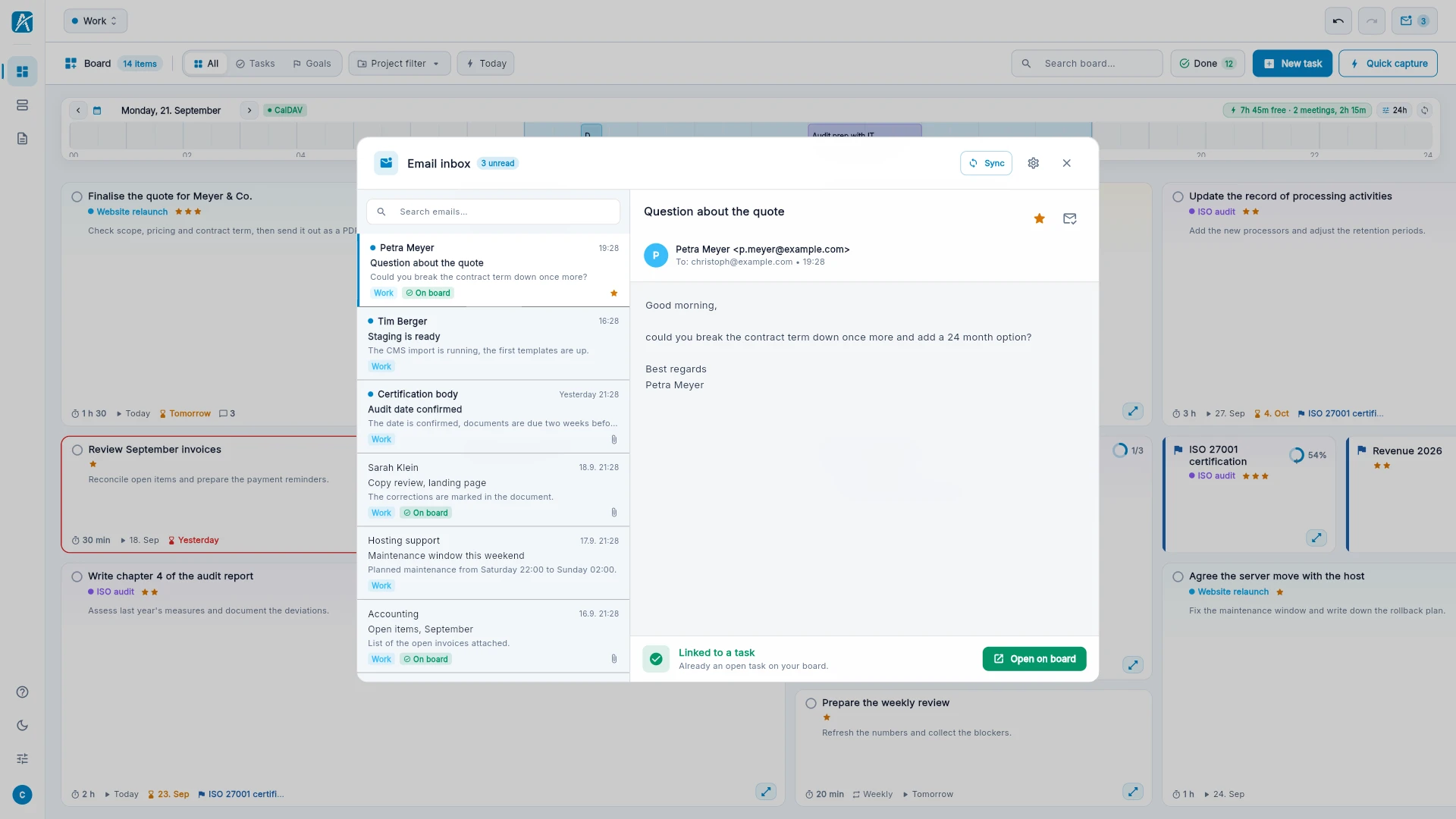
- Click the inbox at the top right. The number next to it shows the unread emails.
- Choose "All inboxes" or a single account. Each account has its own color.
- Open an email.
- Click Create task or Create note.
Emails can be searched, starred and marked read or unread.
Good to know
- Aevo remembers which email a task came from. The email then says "Already an open task on your board", and "Open on board" takes you there.
- "Sync" fetches new emails right away.
- As with calendars, you decide per workspace which mailboxes are visible there.