
Projects and workspaces
Both bring order to tasks, but in different ways. A project is a colored label you filter by. A workspace is a complete separation: its own board, its own notes, its own accounts.
Projects
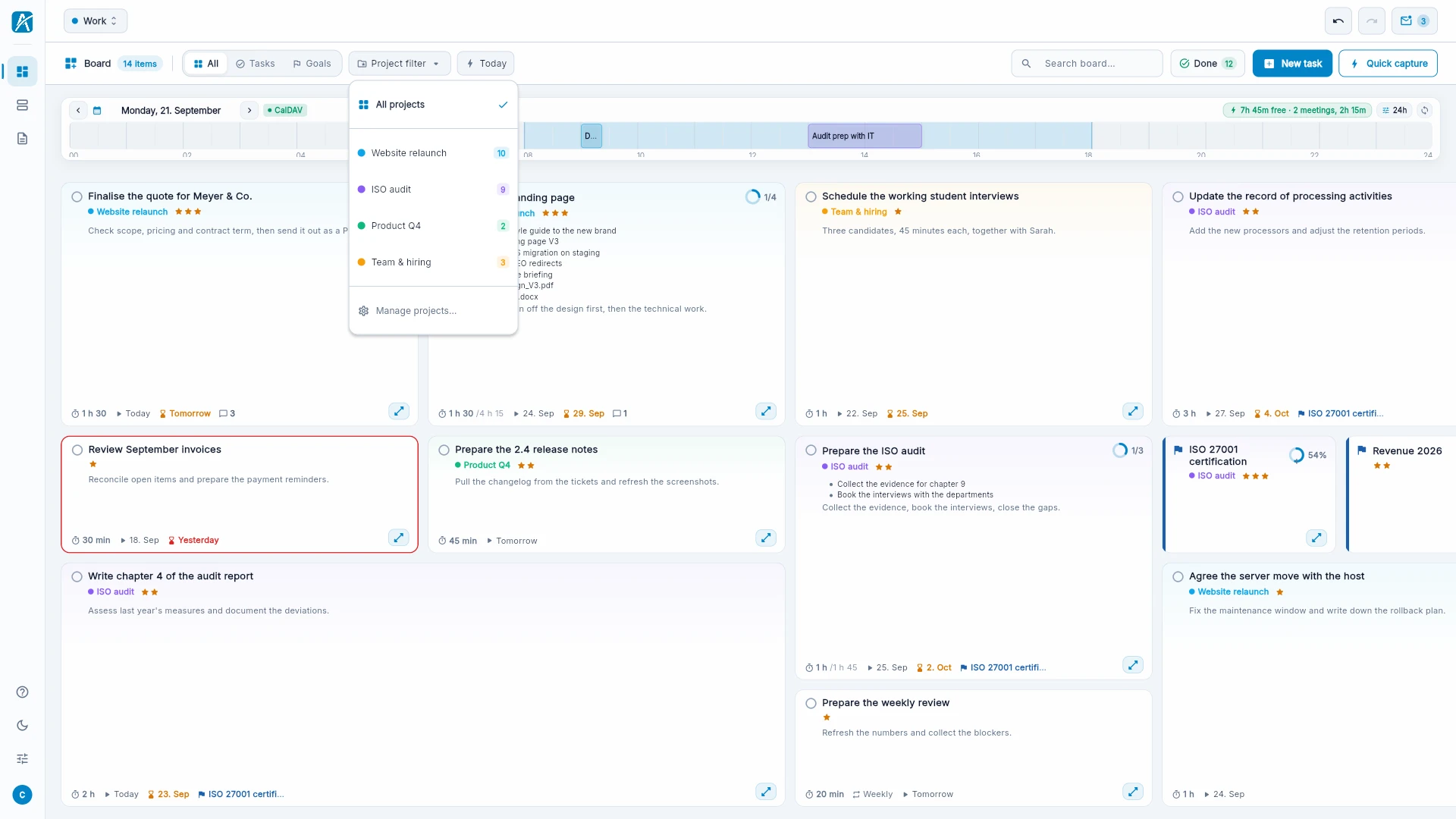
Create
- Open Settings, then Projects. "Manage projects…" in the project filter leads to the same place.
- Click New project.
- Enter name and color, and a description if you like.
Assign. Choose the project in the task's sidebar, in the form, or in quick capture with #name.
Filter. Choose one project or several in the project filter above the board.
A task belongs to one project at most. If you delete a project, its tasks stay and only lose the label. Free includes five projects, Pro any number.
Workspaces
More than one workspace is part of Pro. Free has one.
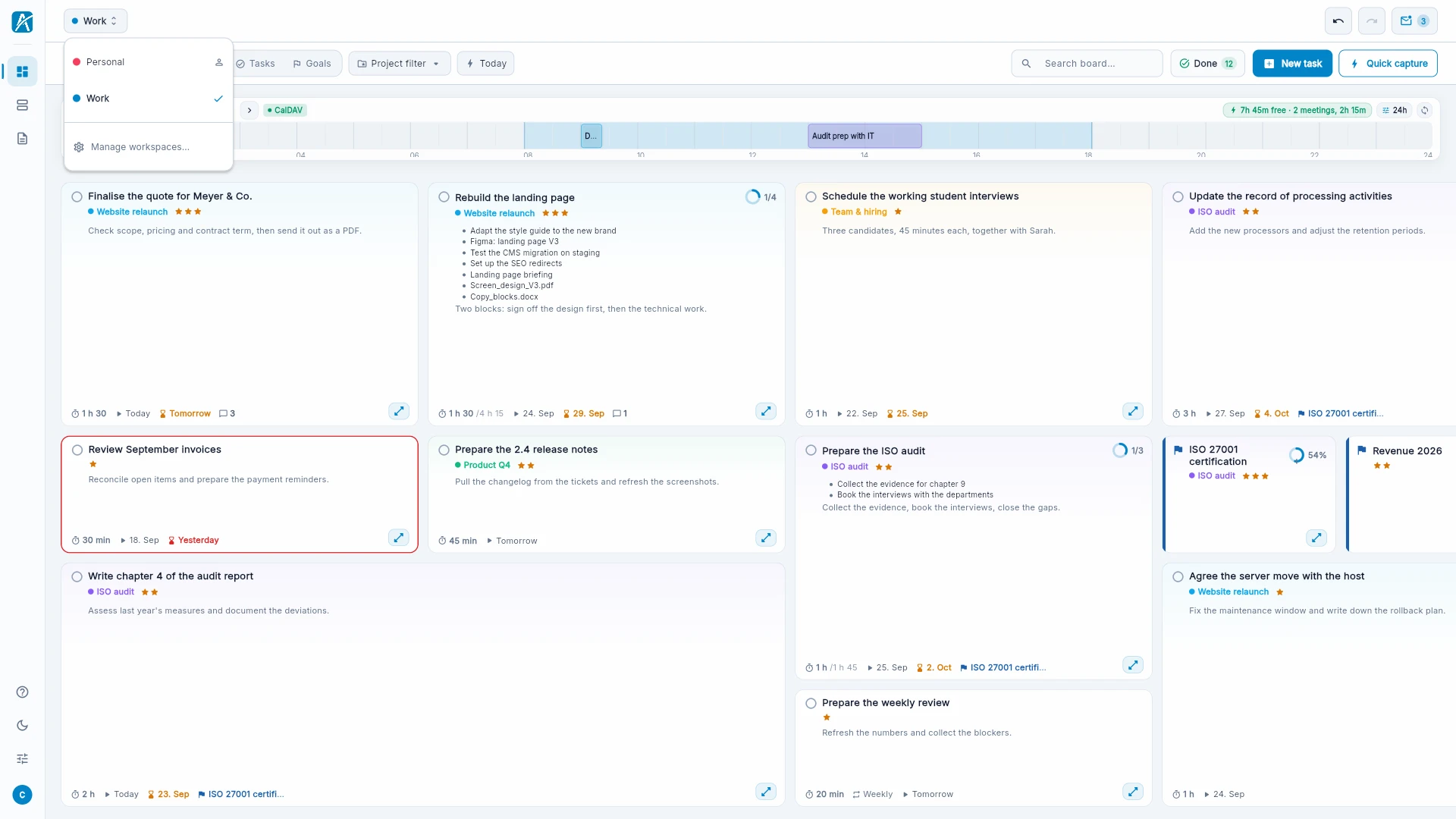
Create
- Click the workspace name at the top left, then "Manage workspaces…".
- Click Add workspace and enter a name, for example "Work", "Personal" or "Club".
Switch. Click the name at the top left and choose another. You always see exactly one workspace.
What is separate. Each workspace has its own tasks, notes and projects, and its own working hours and work days.
Assign mail and calendar accounts. A connected account can be visible in one workspace or in several. Under Settings › Workspaces you decide under "Email & calendar" which accounts appear where. A calendar only takes up time where it is visible. That way the club meeting does not count against your working day.
Good to know
- The personal workspace cannot be deleted.
- Deleting a workspace deletes everything in it: tasks, notes, projects. To confirm you type its name.
- If Pro ends, additional workspaces become read-only. You can still read everything.