
Your day
The order says what comes first. This page shows how far you get today.
Set your working hours
- Open Settings, then General.
- Under "Work hours & daily capacity" set Start time and End time.
- Choose your Work days.
These apply to the current workspace. On a day that is not a work day, Aevo counts zero free time.
Connect a calendar
Part of Pro.
- Open Settings, then Calendars.
- Choose Google Calendar, Microsoft 365 or CalDAV and follow the sign-in.
Aevo only reads your events. Nothing is changed in your calendar. The details per provider are under Connect a calendar.
What fits into today
Part of Pro.
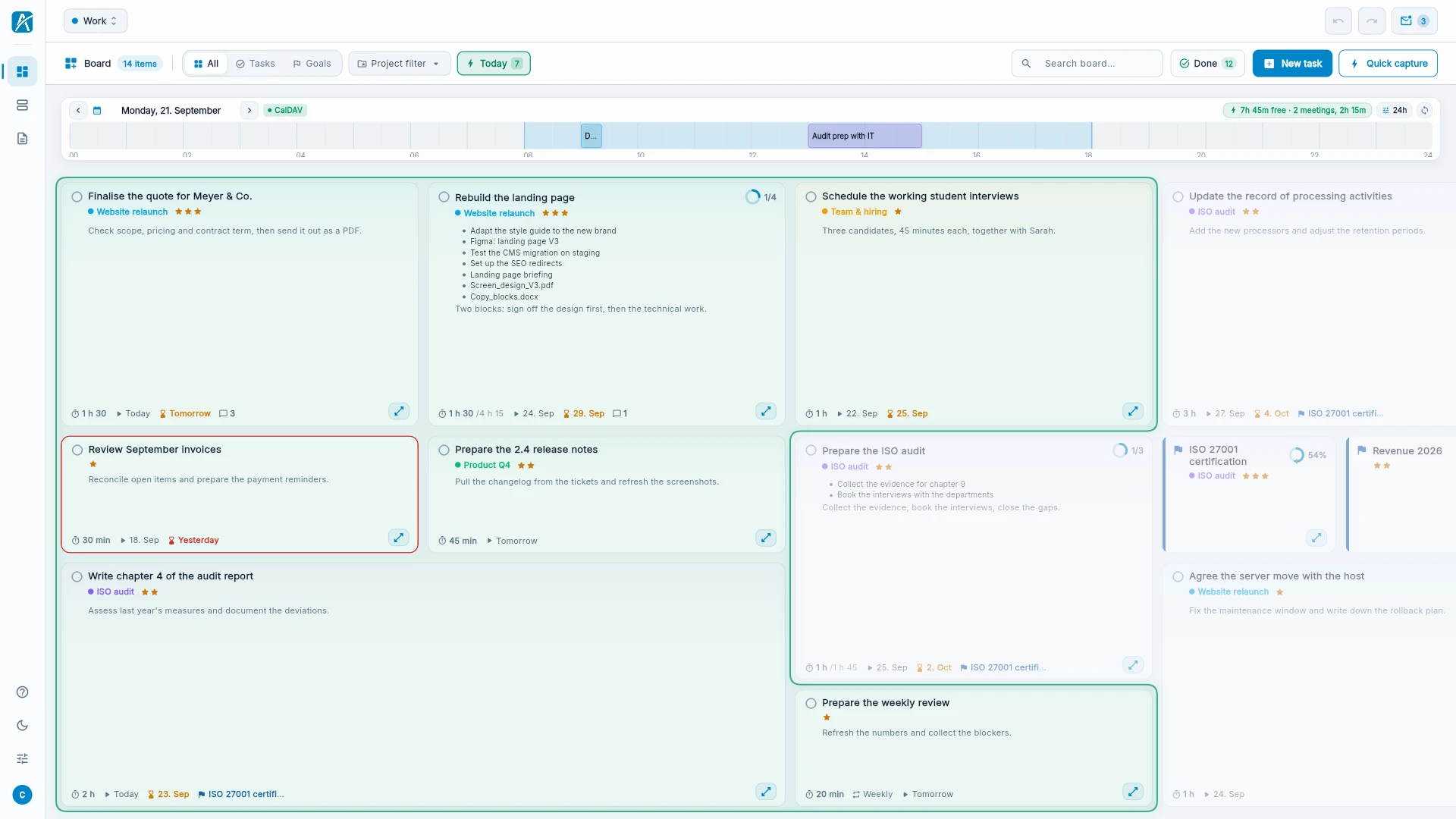
The timeline above the board shows your events and, on the right, how much time is free. Click Today to switch on daily capacity. Aevo then walks down the order from the top and outlines what fits into the free time. The button shows how many tasks that is.
Two things to know:
- Only tasks with an effort count. A task without effort gets no outline.
- Free time shrinks as the day goes on. Less fits at 3 pm than at 9 am.
More: Capacity.
Plan the day by hand
If you want to set today's order yourself, open the Day plan on the left. Your events are fixed blocks there, and you drag tasks into the gaps between them. How that works is under Plan the day.
Try it
- Set start time and end time.
- Give three tasks an effort: 30 minutes, 1 hour, 4 hours.
- Switch on daily capacity with "Today" and see which ones get an outline.
- Move the end time one hour earlier. The outline shrinks.
Next: Moving in