
Set and track goals
A goal is an item with progress. It answers "How far am I?" and, if you give it a time window, "Will I make it?".
Create a goal
- Open the "New task" form and switch to Goal at the top. In quick capture,
goal:at the start of the line is enough. - Enter a title.
- Under Measured by choose how progress comes about.
- If you like, set start and end under Time window.
Three ways to measure
| Measured by | Progress | Fits |
|---|---|---|
| Subtasks | share of completed linked tasks and their subtasks | "Finish the certification" |
| Manual | you set the percentage by hand | anything that cannot be counted |
| Metric | current value against the target, with a unit | "10 new customers", "5 kg" |
Link tasks to a goal
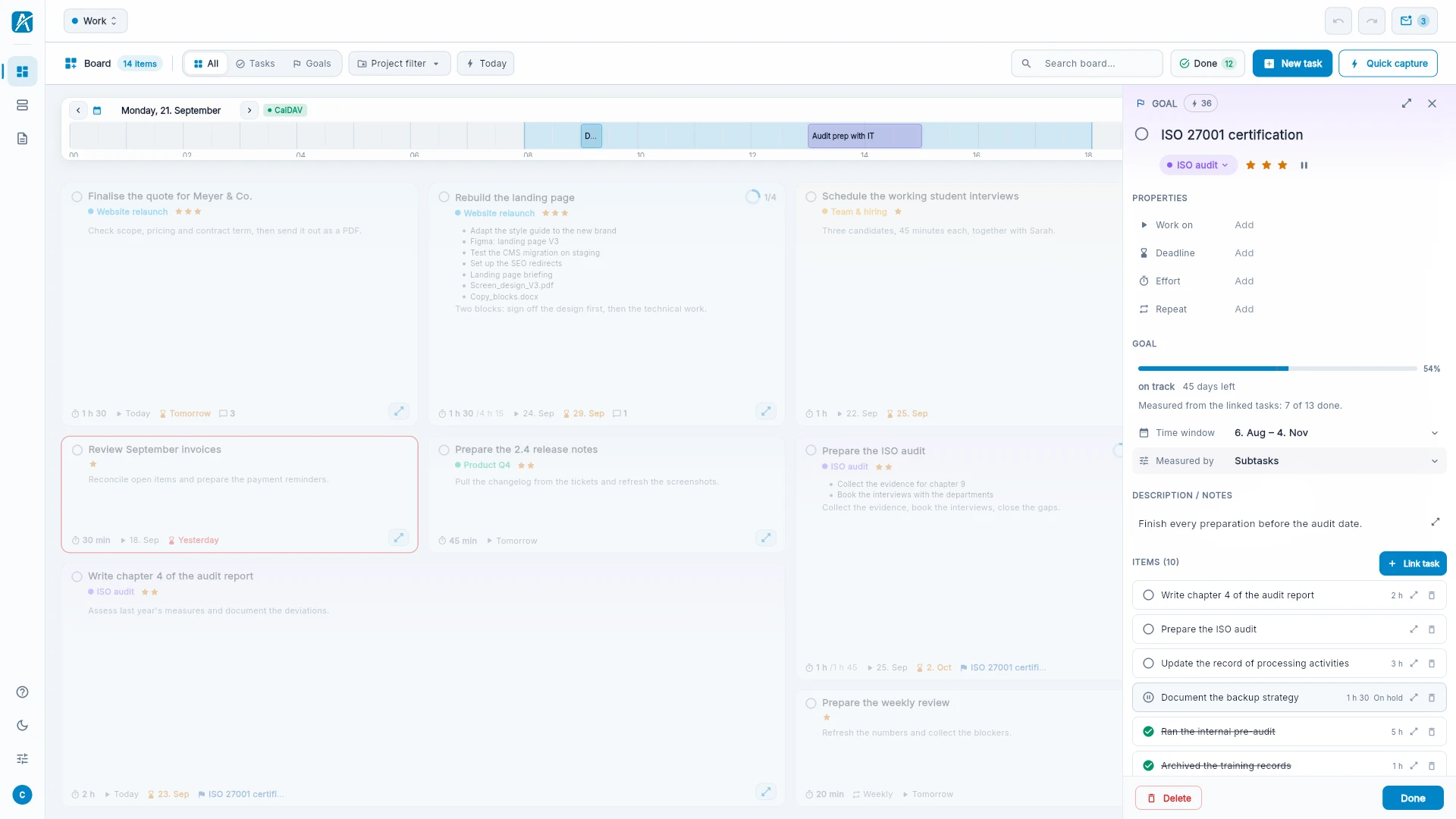
- Open the goal.
- Click Link task in the sidebar or in the zoom view.
- Search for an existing task, or choose "Create a new task and link it…".
The task stays where it is: same project, same place on the board. It now also counts towards the goal and carries a small mark for that. "Remove from goal" undoes the link.
Read the progress
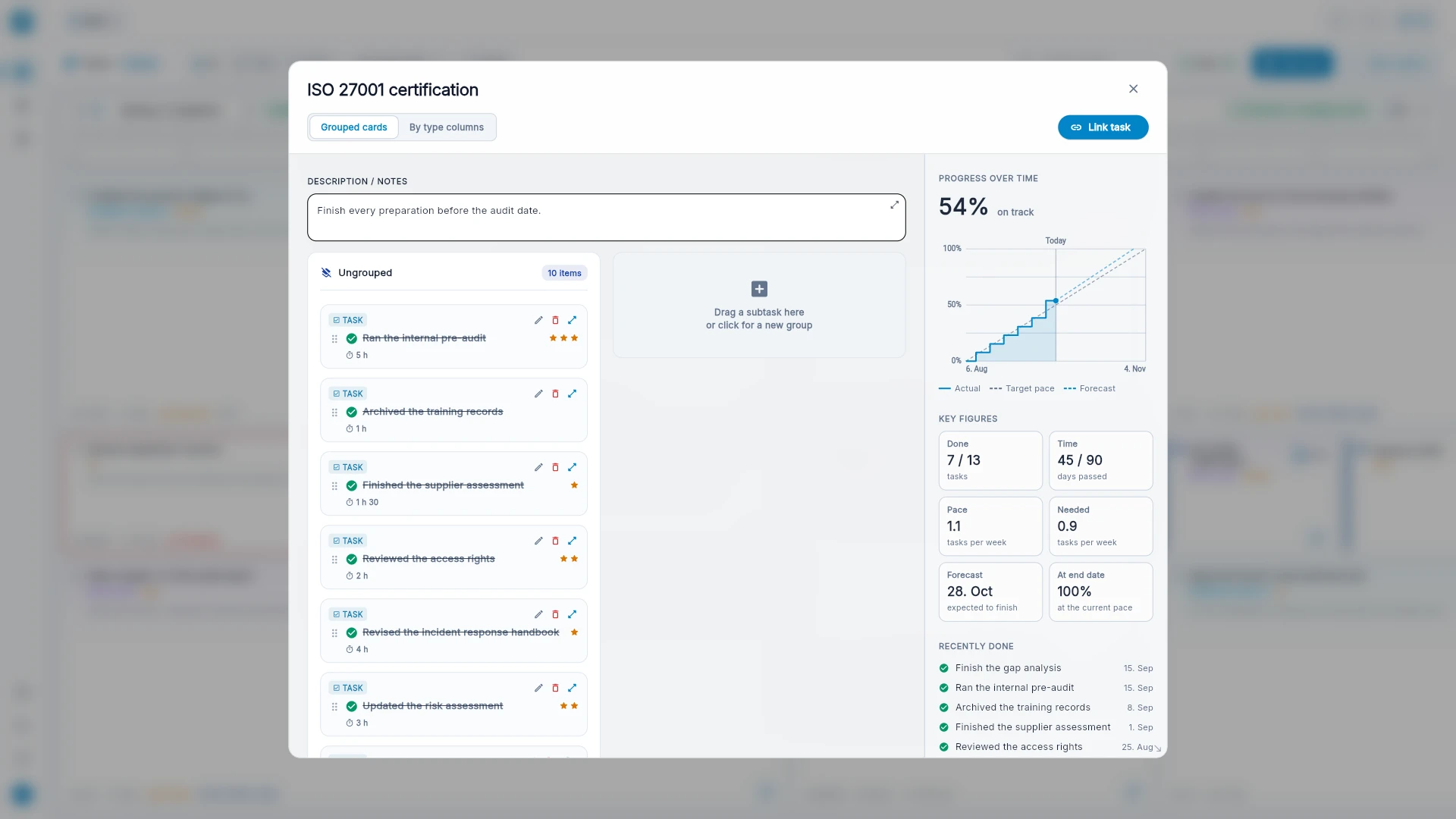
The zoom view of a goal shows three blocks on the right:
- Progress over time: a chart with three lines. "Actual" shows what has been achieved. "Target pace" runs straight from start to end. "Forecast" shows where you land at the current pace.
- Key figures: Done, Time, Pace, Needed, Forecast and the value at the end date.
- Recently done: the latest completed tasks.
On the tile and in Insights it says on track or behind schedule. That compares progress with elapsed time.
Good to know
- The end of a goal is not a deadline. It does not turn the tile red on the last day.
- With "Manual" and "Metric" Aevo stores no history. The line then connects the start with the current value.
- Without a time window there is no comparison with a target pace, only the progress.