
Search and filter
Search
Type into the field Search board…. Search finds text in title and description and hides everything else.
Filter
Three filters work together:
- Type: All, Tasks, Goals.
- Project filter: one project or several.
- Search.
Filtering does not change the ranking. It only hides what is not meant right now. If the filter finds nothing, it says "No matches".
The list
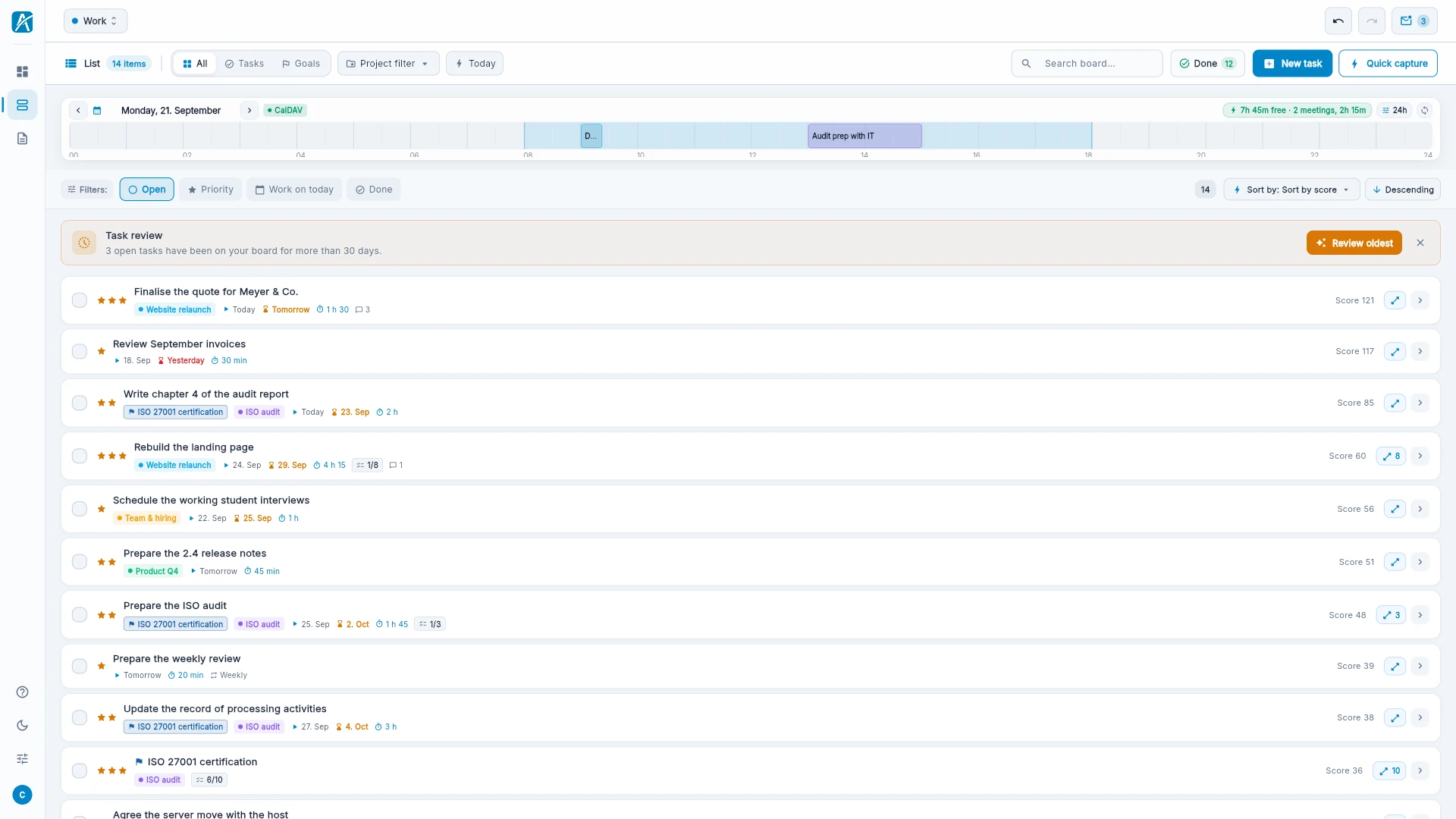
Open the List on the left. It shows the same tasks in rows, grouped by Overdue, Today, Tomorrow, This week, Later and No date.
- Sort by Score, Work on, Deadline, Priority, Title, Date created or Effort, ascending or descending.
- Status: Open, Prioritized, Today, Has subtasks.
The list is the better choice when you want to go through many tasks at once or sort by one particular field.
Completed
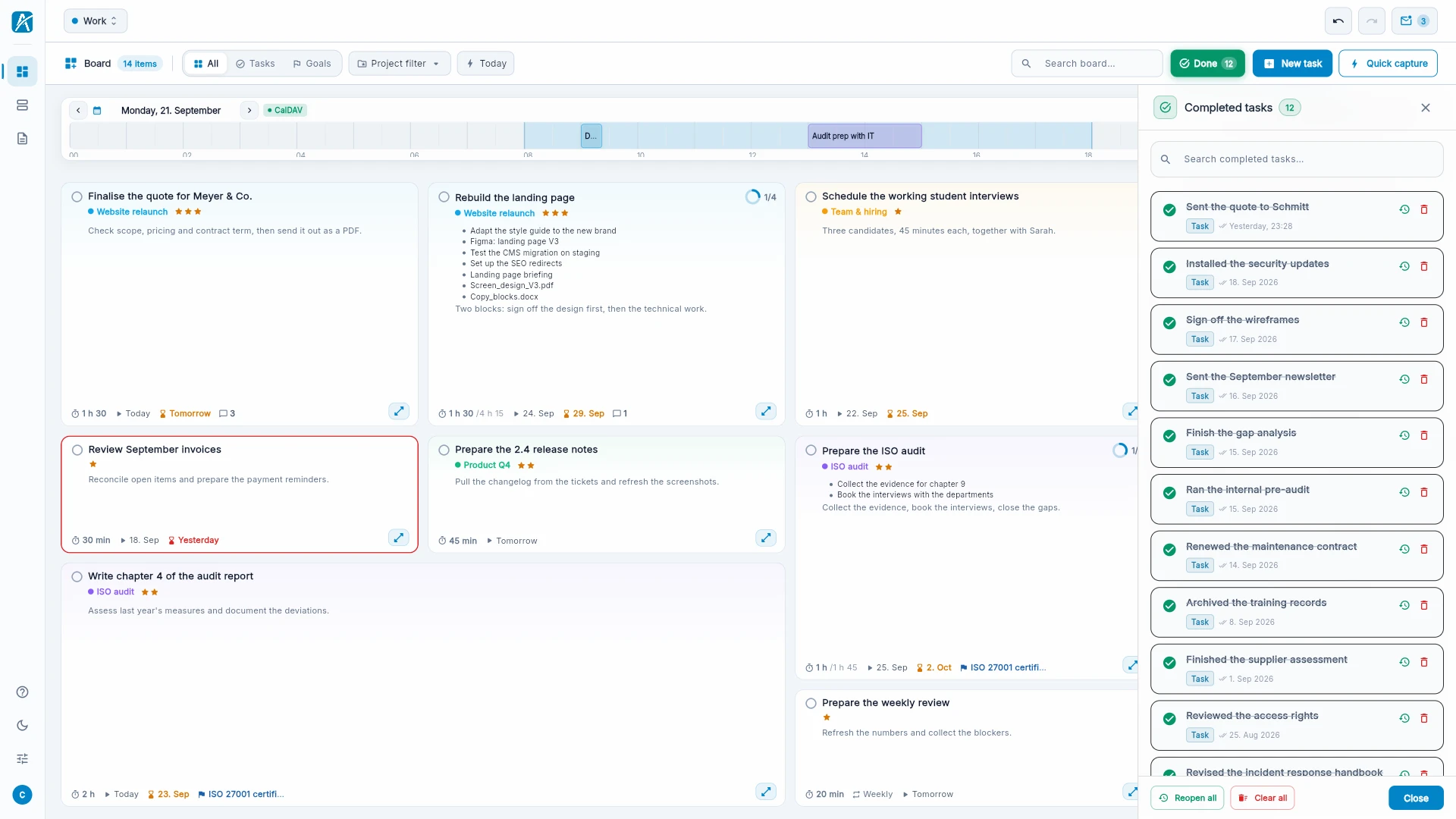
Click Completed. The sidebar shows everything you ticked off, grouped by day and searchable.
- Reopen task: brings a task back to the board.
- Delete permanently: removes it for good.
- Reopen all and Clear all act on the whole list.
A completed task with open subtasks stays when you clear the list. Deleting it would take the open subtasks along.
Undo
Changes on the board can be taken back, including accidental deletion.
| Windows, Linux | Mac | |
|---|---|---|
| Undo | Ctrl+Z | Cmd+Z |
| Redo | Ctrl+Y | Cmd+Shift+Z |
The two arrows at the top right do the same.